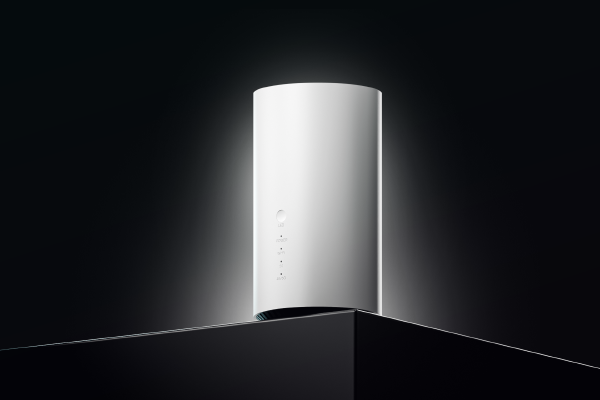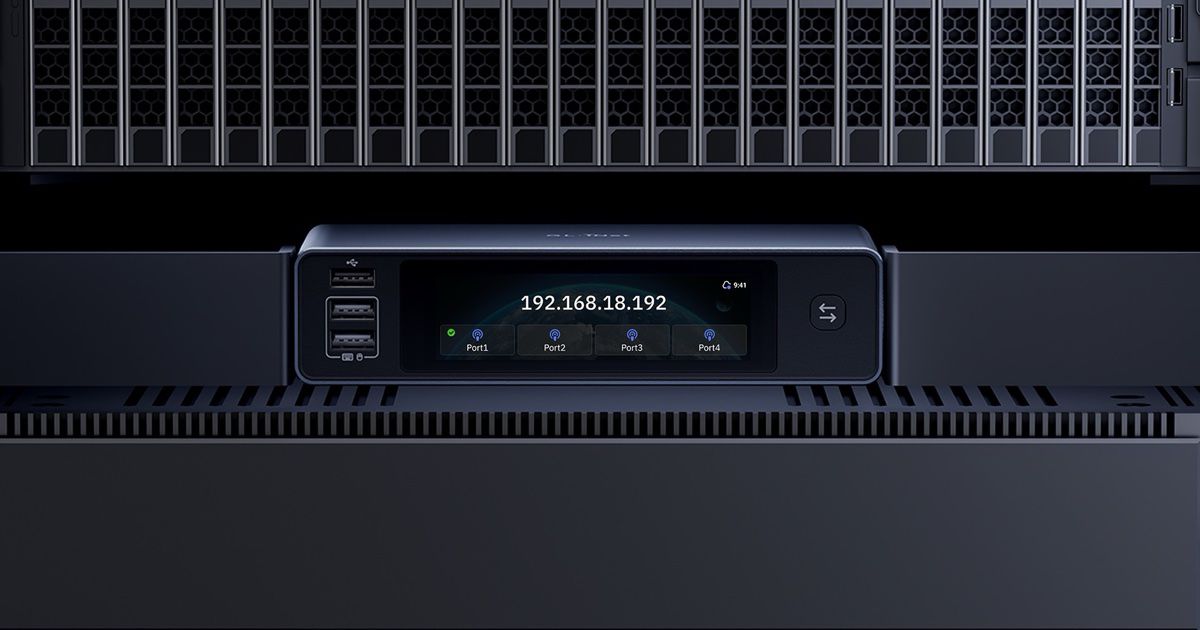
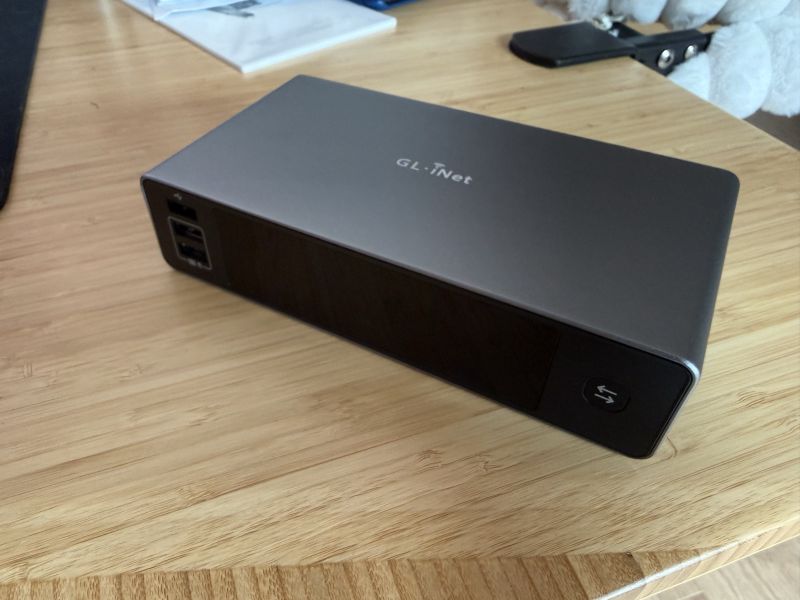
Part 13 made the cluster usable, with names that resolve and valid certificates. Before picking the software thread back up, a hardware break: a new resident has just moved into the homelab rack, the GL.iNet Comet X (GL-RM4PE), a four-port KVM over IP powered over PoE.
A small change of plan along the way: the end of part 13 announced the 3D-printed 10-inch rack as the next step. It’s coming right after this one in the end, and a few photos in this article might spoil it a little. I promise it’ll get its own article in the next part. For now, the KVM takes the stage.
Transparency first: this article is the result of a partnership with GL.iNet, my second after the one with Teltonika Networks in part 4. In practical terms, I received the Comet X shown here for free. I’m not paid by the brand and I’m under no obligation to deliver any particular outcome. So I’m entirely free to say what I want: I’ll talk about both the good sides and the points that, in my opinion, deserve to be improved. Thanks to GL.iNet for sending it and for their trust, but the rule doesn’t change: I say what I think.
On the menu: unboxing, first boot, the firmware update, a tour of the settings, the basic configuration, mounting it in the rack and plugging in the four machines. Then a real field test: waking a node with Wake-on-LAN. It didn’t work first time, and that’s a good thing, because it’s what showed what this box is really for.
The common thread of this part: taking back control of a machine with no screen or keyboard. When the network or the OS stops responding, SSH is no use any more. The KVM, on the other hand, is still there: it’s the homelab’s safety net.
What’s a KVM over IP?#
If you’ve landed straight here, a bit of context. KVM stands for Keyboard, Video, Mouse. A KVM over IP is a box that captures a machine’s video output (HDMI here), presents itself to that machine as a USB keyboard and mouse, and carries all of that over the network. From a plain browser, you see the machine’s screen and control it as if you were sitting in front of it.
The big difference with SSH is that the KVM doesn’t depend on the system of the machine it controls. It sees the BIOS, the boot menu, the installer, a kernel panic or a misconfigured network interface. In short, everything that happens before the OS is in a state to answer you, or after it has stopped doing so. I’d already introduced the idea in part 7, with my first KVM.
Why change KVMs#
That first KVM is the JetKVM. It showed up as early as part 5 and part 7 gave it a whole aside: it’s what let me mount the Proxmox ISOs remotely, drive the OptiPlex BIOSes and keep console access during the battle with UEFI boot.
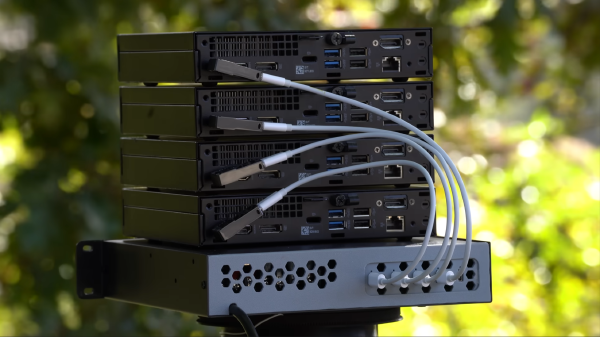
The thing is, the JetKVM has a single port: one machine at a time. To go from one node to the next, I had to unplug it and plug it into the next one. As long as the OptiPlexes were stacked on a desk, that was manageable. In a rack, going round the back to move a dongle is precisely the kind of thing a KVM is supposed to spare you.
The Comet X changes the game: four machines permanently connected, and you switch from one to another from the browser. Like its predecessor, it takes its video inputs over HDMI. And, as I explained in part 7, pbs01 (the OptiPlex 9020) only outputs DisplayPort and VGA. Nothing dramatic: providing DisplayPort as well on every port would be frankly overkill, and the box would become huge. An adapter will do the job nicely for that one machine, more on that below.
As for the JetKVM, it’s on the bench for now. It might find a new spot in the main rack, on the Raspberry Pi running Home Assistant. We’ll see.
The tech specs#
For the full details, I’ll point you to GL.iNet’s product page.
| Item | Value |
|---|---|
| Model | Comet X (GL-RM4PE) |
| CPU | Quad-core ARM Cortex-A53 |
| Memory / storage | 1 GB DDR3L / 64 GB eMMC (built-in ISO image store) |
| Video | 4 HDMI inputs, 1 HDMI output (passthrough), up to 4K at 30 fps |
| Advertised latency | 30 to 60 ms, on the local network (P2P) |
| USB | 4 USB-C “device” ports (to the machines), 3 USB-A on the front (local keyboard and mouse), 4 USB-A on the back (accessories) |
| Network | 1 x 1 Gbps Ethernet port, PoE 802.3af/at |
| Power | PoE, or USB-C 5 V / 3 A (PD) as a backup, automatic switchover if PoE drops |
| Screen | 3.69-inch TFT touchscreen (status, IP, screen preview) |
| Dimensions / weight | 170 x 90 x 40 mm, 560 g |
| Rack mounting | 10- and 19-inch compatible, brackets for both sizes included |
| Power control | Built-in Wake-on-LAN, up to 4 ATX boards or Fingerbots |
| Remote access | Browser, GL KVM app, Tailscale, ZeroTier, Netbird |
Three lines caught my eye with the series in mind. The 10-inch mounting with brackets included, for the printed rack I’ll show you in the next part. PoE (Power over Ethernet, power delivered through the network cable), which the UniFi switch in the rack can supply. And Netbird in the list of remote access options: that’s exactly the VPN I’ve planned for reaching the homelab from outside.
Step 1: unboxing#
In the box you’ll find:
- the Comet X
- two brackets for a 10-inch rack (the short ones) and two for a 19-inch rack (the long ones), with their screws
- 4 HDMI cables, 1 m each
- 4 USB-C to USB-A cables, 1 m each, USB-C on the Comet X side, USB-A on the machine side
- 1 Ethernet cable
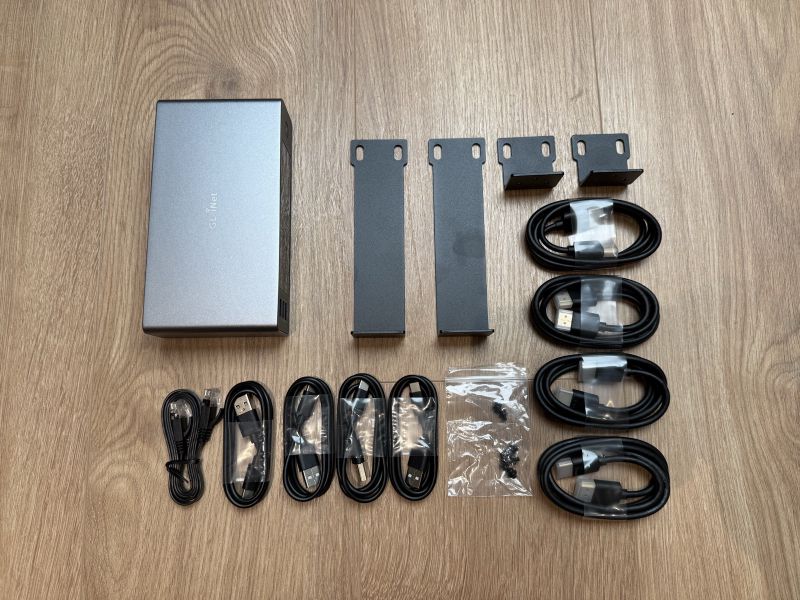
That’s genuinely appreciated: everything you need to connect the four machines and mount the box in a rack, whatever its width, without buying anything extra.
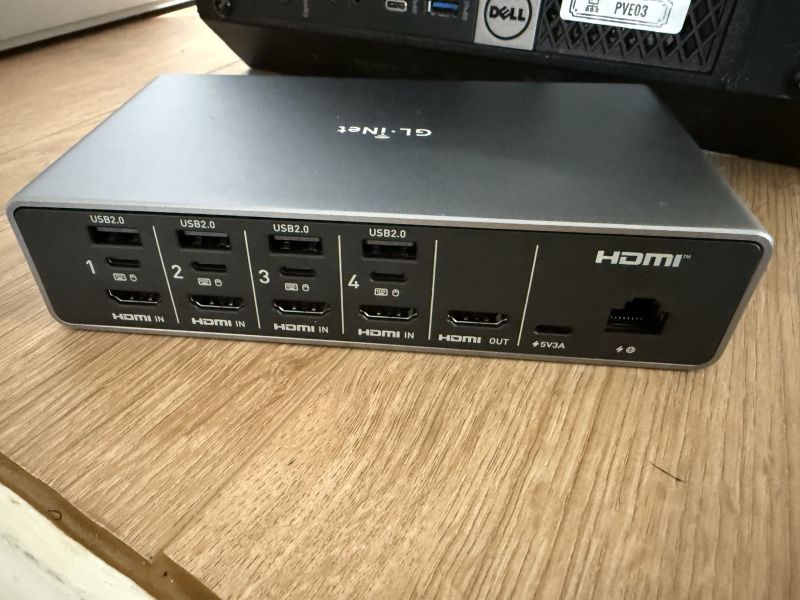
On the back, the box is laid out in four identical groups, one per machine: a USB 2.0 port for accessories, a USB-C for the emulated keyboard and mouse, and an HDMI input. On the right, the HDMI output, the backup USB-C power input (5 V / 3 A) and the PoE RJ45 port.
Step 2: first boot and PIN code#
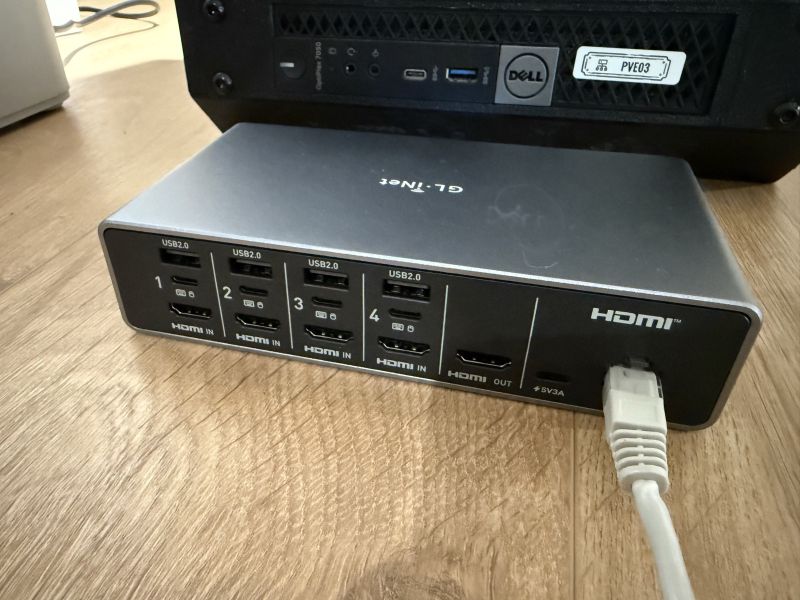
For power, a single cable is enough: the Comet X is plugged into port 4 of the rack switch, configured on the lab VLAN. PoE does the rest, no extra power brick to find room for.
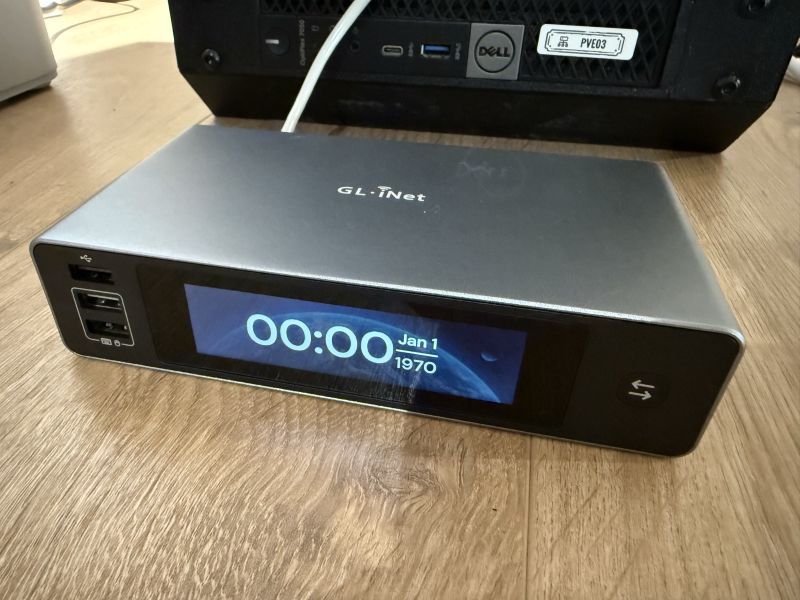
On boot, the screen’s clock proudly displays 00:00, 1 January 1970. That’s the dawn of time for a Unix system, the time you get until NTP sync has happened. It corrects itself as soon as the box reaches the network.
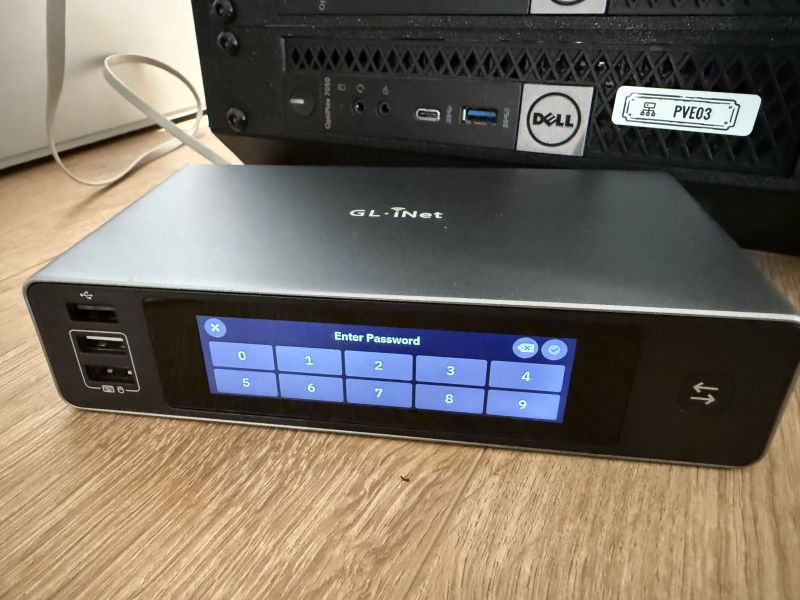
The touchscreen then asks you to set a four-digit admin PIN, entered directly on the front panel.
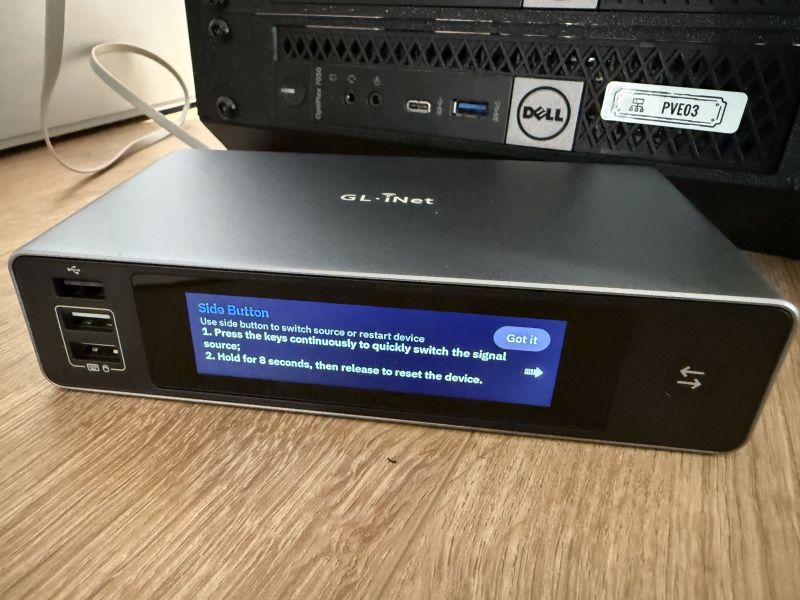
On the side, a physical button has two uses: one press switches source, an 8-second press resets the box. Good to know, because if you ever need a reset, it isn’t mentioned anywhere else.
The screen shows the address obtained via DHCP: 192.168.3.16. Over to the browser: you set the web interface password and land on GLKVM, the box’s web application.
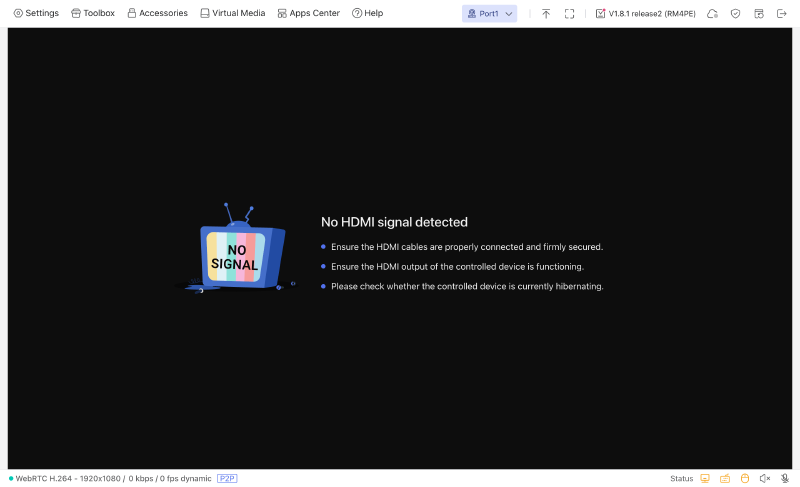
The interface is organised around a few menus (Settings, Toolbox, Accessories, Virtual Media, Apps Center, Help), a port selector and a full-screen view. With no machine connected, the video shows “No HDMI signal detected”, with a WebRTC H.264 stream at 1920x1080 and a P2P connection. In the top right, the factory firmware, V1.8.1 release2, already carries a “new version available” badge.
Step 3: the firmware update#
The update window offers V1.10.1 release4, marked “Latest Version Release”. The “Save current configuration” option is ticked by default and a “Local Upgrade” link lets you install a manually downloaded file.
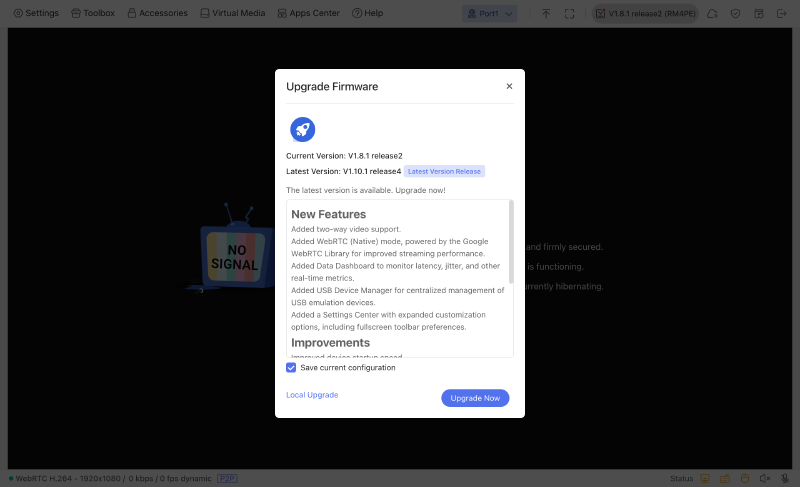
The list of new features is a generous one:
- two-way video;
- a WebRTC (Native) mode, based on Google’s WebRTC library;
- a dashboard for latency, jitter and other real-time metrics;
- a manager for emulated USB devices;
- an expanded settings centre.
On the improvements side: faster boot, a stricter password policy (10 characters minimum, at least two character types), keyboard and mouse carried over WebRTC to reduce latency in P2P, and a Caps Lock indicator. Plus a fix for microphone crackling and freezes.
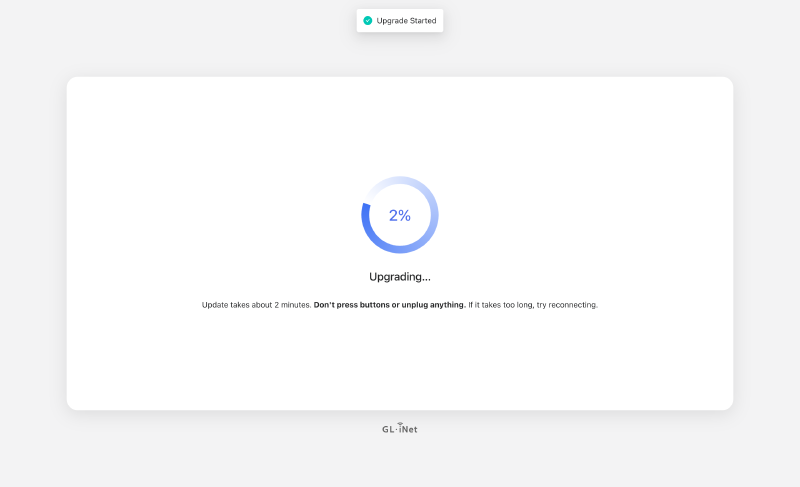
One click on “Upgrade Now” and everything runs without any input: the package download with its percentage, then the “Upgrading…” screen which soberly warns “Update takes about 2 minutes. Don’t press buttons or unplug anything.”, then the automatic reboot and back to the login page. A few minutes in all.
Once back, the box shows V1.10.1 release4, marked “Latest”. The web server has moved to nginx/1.31.2, the interface has changed (icon-only menus, new icons for the settings and the dashboard in the top right) and the stream is now called “WebRTC(FEC) H.264”. My password, already strong and stored in Bitwarden, was kept: no change requested despite the new policy.
And one new feature made me happy: the Netbird app has appeared in the Apps Center. It didn’t exist in V1.8.1. The product is evolving fast, and in the direction of my homelab.
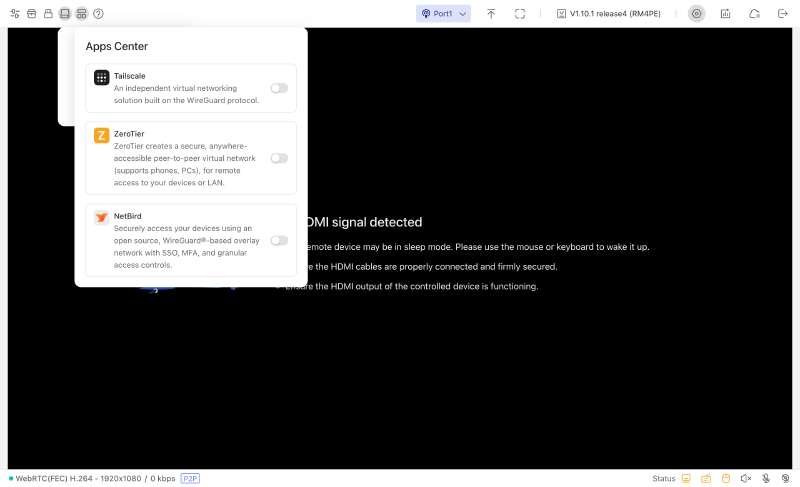
Update before you configure. On brand-new kit, the factory firmware is often a few versions behind. Here, the update brought the latency dashboard and the Netbird app, two things I use later on. Might as well do it while there’s still nothing to lose.
Step 4: a tour of the settings and the basic configuration#
Before touching anything, I went through the default state. In short:
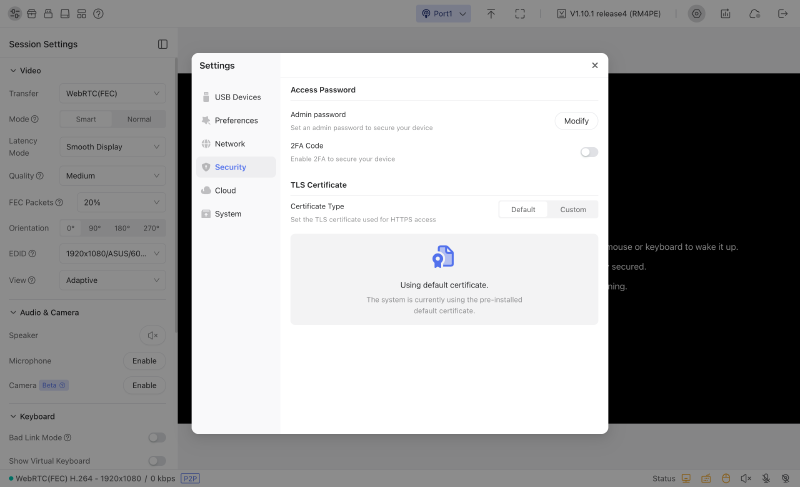
- Session Settings (left-hand menu, settings specific to the session): video (WebRTC(FEC) transport, Smart or Normal mode, “Smooth Display” latency, Medium quality, 20 % FEC packets, EDID
1920x1080/ASUS/60Hz), audio and camera (disabled), keyboard (including a Cmd/Ctrl swap for macOS, handy from my computer) and mouse (including a “Mouse Jiggle” that prevents sleep). - Settings, the settings centre, in six tabs. USB Devices manages the emulated devices with a “resources” budget (3 out of 10 used by the mouse and keyboard; virtual microphone, camera, USB stick and CD-ROM inactive). Preferences covers display, language, time zone (Etc/UTC by default) and the touchscreen. Network shows the hostname
glkvmand Ethernet on DHCP. Security groups the password, 2FA (disabled) and the TLS certificate (Default or Custom, so importing one is possible). Cloud offers to link the box to a GL.iNet account. System handles reboot, reset, the beta channel and log export. - Toolbox: clipboard (“Paste To Remote Device”), OCR, keyboard shortcuts (Ctrl+Alt+Del and friends), Wake-on-LAN and even a terminal on the KVM itself.
- Accessories: no external accessory detected, neither ATX board nor Fingerbot.
- Virtual Media: disabled by default.
- Apps Center: Tailscale, ZeroTier and Netbird, all disabled.
The basic configuration comes down to two settings:
- Hostname:
glkvmbecomeskvm01, consistent with pve01, pbs01 or dns01. The field saves without a confirm button andkvm01.localresolves immediately over mDNS. - Time zone: Etc/UTC becomes Europe/Paris.
Both survived a reload of the interface. On the network side, the next step is planned but not done yet: a DHCP reservation in UniFi rather than a static IP in the KVM (that way addressing stays managed in a single place), which will put kvm01 on .30, the address the addressing plan from part 5 had already reserved for the KVM. Then a kvm01.ktw.ovh record in the Technitium from part 13.
And what I’ve deliberately left aside for now:
- 2FA: it’ll come later.
- The GL.iNet cloud: not linked. Remote access will go through Netbird, in a future part.
Step 5: rack mounting and connecting the machines#
The 10-inch brackets screw onto the sides of the box and the Comet X takes its place in the printed rack, at U6, the slot I’d intended for the JetKVM.
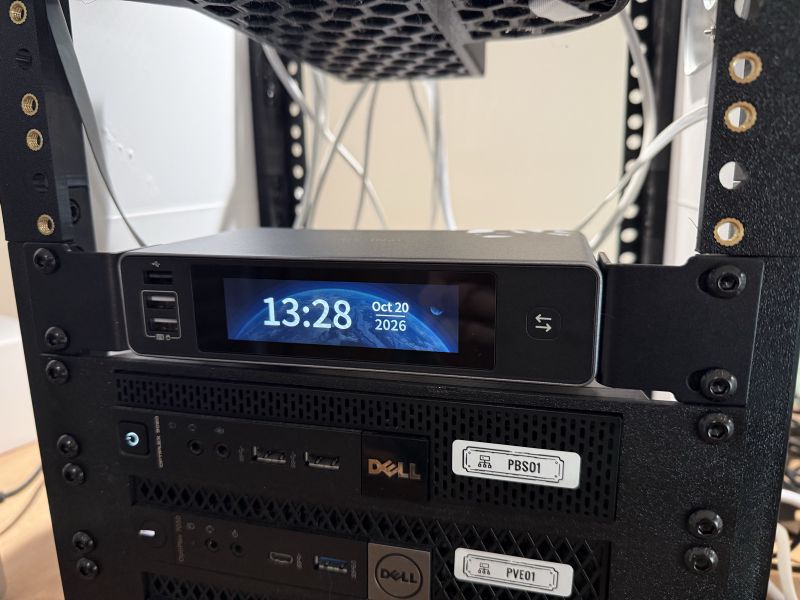
The cabling is simple: one HDMI and one USB per node, using the supplied cables (USB-C on the Comet X side, USB-A on the OptiPlex side).
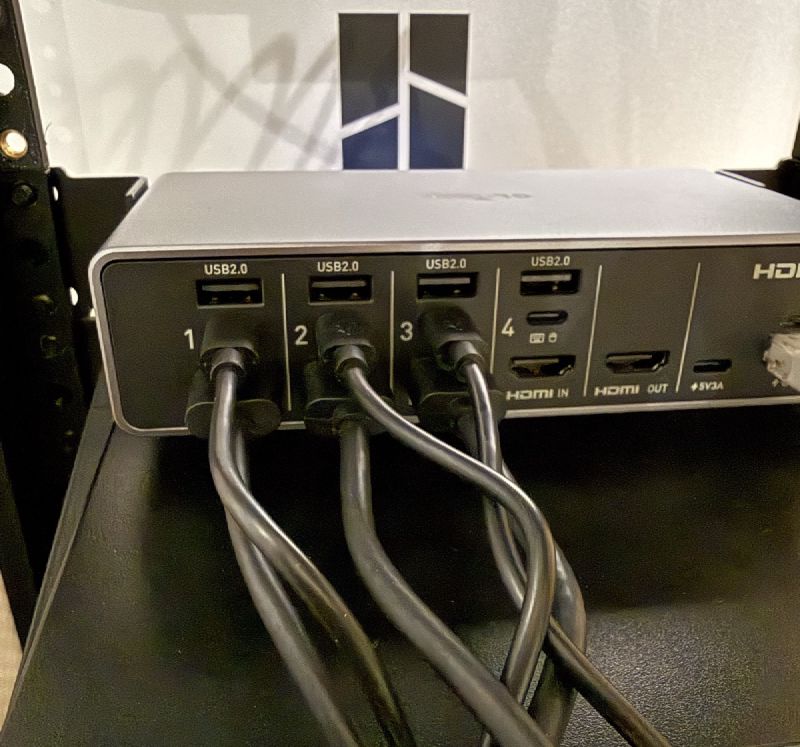
| Port | Machine |
|---|---|
| Port1 | pve01 |
| Port2 | pve02 |
| Port3 | pve03 |
| Port4 | pbs01 (via an adapter) |
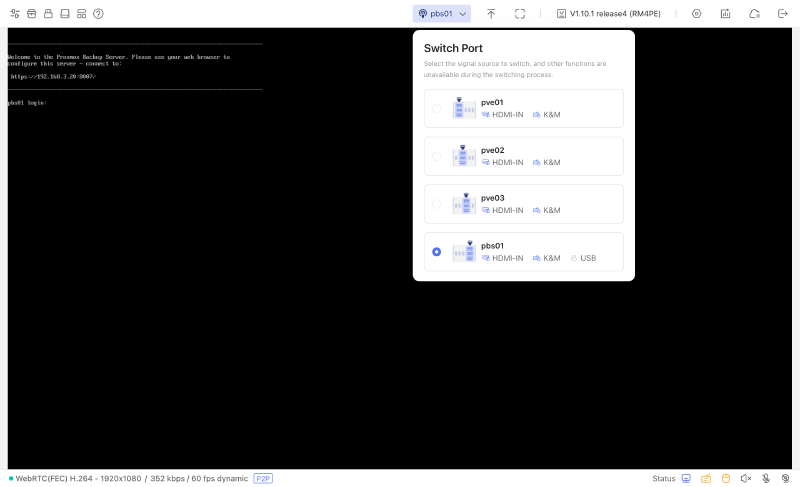
That leaves pbs01, the OptiPlex 9020, whose DisplayPort output won’t go into an HDMI input. A UGREEN DisplayPort to HDMI adapter plugged into the 9020, one of the supplied HDMI cables, USB on port 4, and it’s sorted. The port switches to HDMI-IN and K&M, the Proxmox Backup Server console shows up at 1080p 60 fps and the keyboard responds. The port gets renamed pbs01 and all four machines in the rack can now be controlled from the browser.
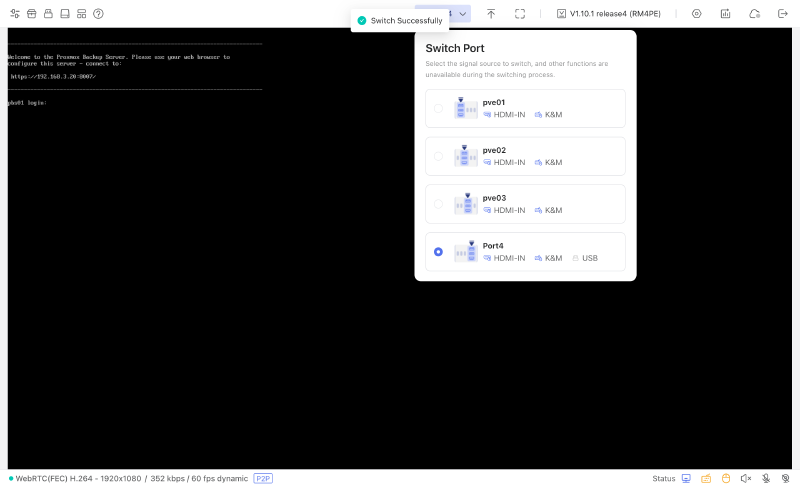
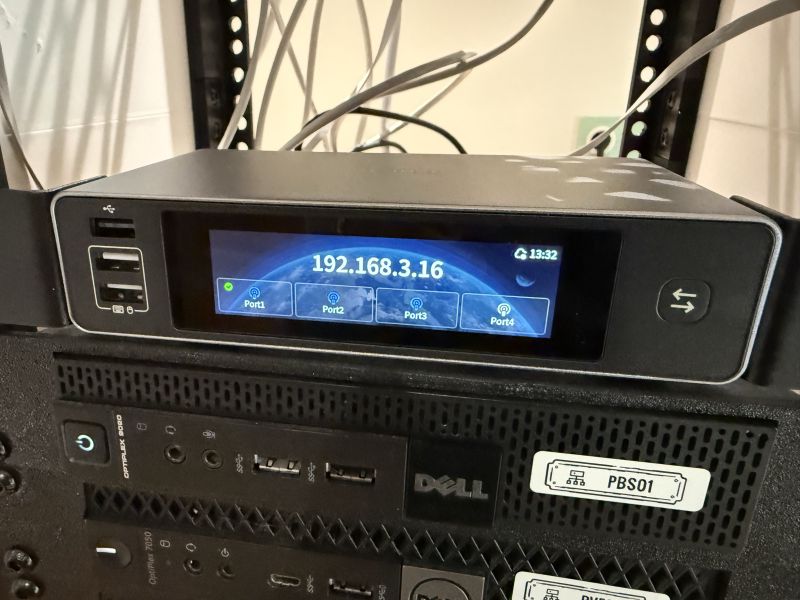
In the interface, the “Switch Port” selector shows for each port whether it detects a video input (HDMI-IN) and a keyboard and mouse (K&M). The USB label follows the active port: virtual media are attached to the selected port. Switching from one port to another takes a few seconds, the time for a “Switching signal in progress” screen and then a “Switch Successfully” notification.
For the keyboard, one detail: you first have to click inside the video for it to be captured. Until you do, the keyboard and mouse icons stay orange in the bottom right. After that, typing works without a hitch: hitting Enter at pve03’s login: prompt does bring the prompt back up.
Final touch, a pencil appears when you hover over each card in the selector (“Edit Port Name”). The four ports are now called pve01, pve02, pve03 and pbs01, and the name replaces “Port1” in the toolbar. A small detail, but it’s the kind of detail that stops you rebooting the wrong node.
Step 6: the dashboard and latency#
V1.10.1 brought a Data Dashboard, which shows the device status (HDMI connected, keyboard and mouse captured or released, microphone, camera) and real-time metrics. On the LAN, in P2P, with a text console on screen, here’s what I measured:
| Metric | Readings |
|---|---|
| Network latency | mostly around 6 ms, with spikes up to 75 ms |
| Jitter | 2 to 9 ms |
| Packet loss | 0 % |
| Bitrate | 130 to 145 kbps |
| Frames per second | 58 to 62 fps |
| Playback delay | under 0.5 ms |
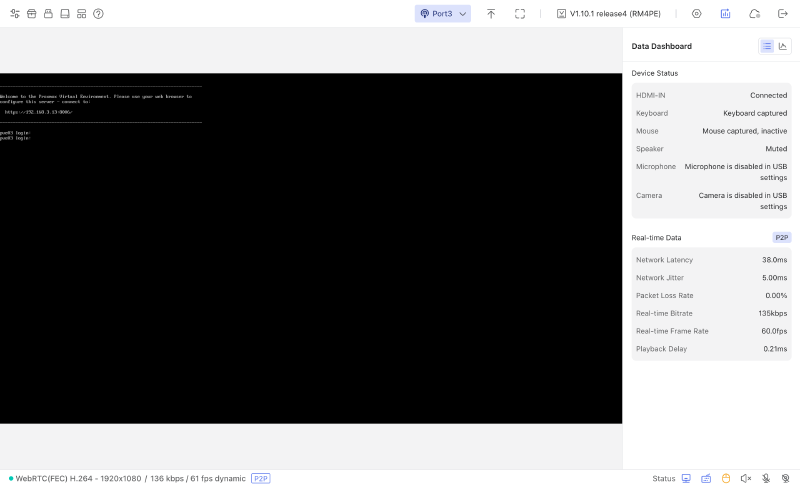
On paper, that’s very decent. But let’s be honest about what these numbers are worth: a text console is almost a still image, hence the tiny bitrate. GL.iNet advertises 30 to 60 ms of latency, a figure that applies to the local network (LAN, in P2P). For a fair comparison, I’ll need to redo the measurement with a graphical display (a BIOS, an installer), still on the LAN. Remotely, via Netbird or any other VPN or tunnel, the latency you actually experience is the device latency plus the network round-trip time: that’s a different measurement, which I’ll cover in a future part.
Step 7: Wake-on-LAN and remote BIOS#
Wake-on-LAN is the ability to switch on a powered-off machine by sending it a magic packet over the network, a frame containing its MAC address. For the homelab, the benefit is clear: being able to shut the rack down when it isn’t in use, to cut power consumption, and switch it back on remotely. The OptiPlexes have had Wake-on-LAN enabled in the BIOS since part 7: it was in the table of reference settings.
In the Toolbox, the Wake-on-Lan section lets you declare machines. The “Add Device” window scans the VLAN and lists everything that responds, with name, IP and MAC address. Handy, but I preferred to add it manually: a name and a MAC address, and pve01 is declared. (You won’t see those screens here: they show the lab’s MAC addresses.)
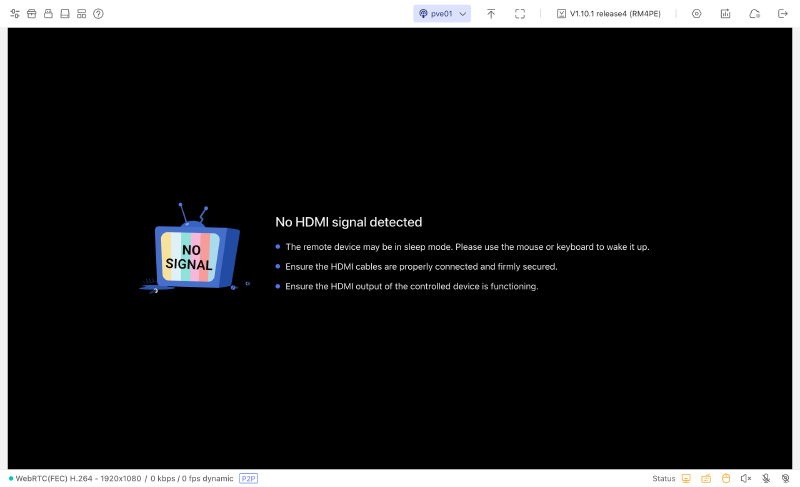
For the test, pve01 is shut down cleanly. HA moves the CI runner to another node, as planned since part 11. The KVM shows “No HDMI signal detected” and ping no longer responds.
Snag: the packet goes out, the node sleeps on#
One click on “Wake” and the interface is adamant:
Wake up command sent successfully.Except pve01 doesn’t budge. No video signal, no ping, still nothing after more than a minute. The packet went out, but nobody heard it.
Since Wake-on-LAN is definitely enabled in the BIOS, two suspects:
- on the Linux side, the network card may be left in
Wake-on: d(disabled) at shutdown, in which case it stops listening altogether - on the BIOS side, a power-saving setting, Deep Sleep Control, which cuts the network card at shutdown. It wasn’t in my reference settings from part 7, so I’d never looked at it
The second one can be checked in the BIOS. And that’s where the KVM shows what it’s really made of.
The BIOS in the browser#
I do have to switch pve01 back on once, with the button, since Wake-on-LAN isn’t working. But that’s the only physical action in the whole operation. On boot, Proxmox’s GRUB menu shows up in the browser and offers a very handy entry: “UEFI Firmware Settings”, which reboots straight into the BIOS. Rather than watching for the Dell logo to hit the right key at the right moment, you calmly select it with the keyboard, through the KVM.
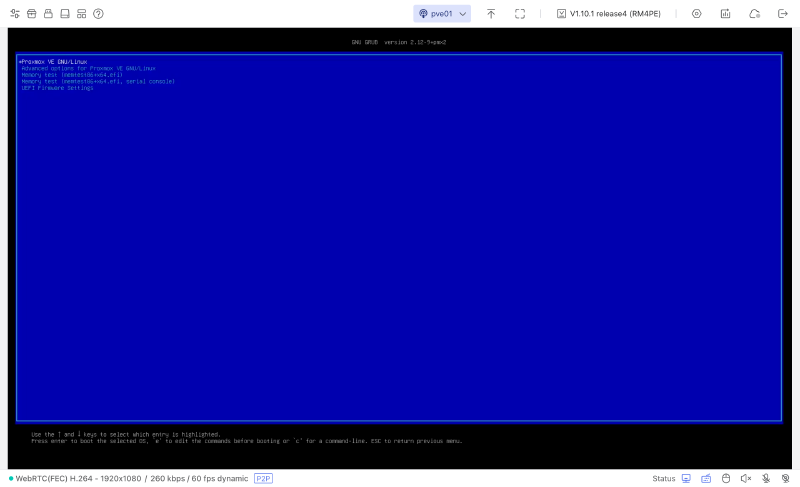
The Dell OptiPlex 7050’s BIOS then appears in a tab in my browser. No screen or keyboard plugged into the machine, and keyboard navigation works without any trouble.
Over to Power Management. Wake on LAN/WLAN is indeed set to LAN Only, as per part 7. But just above it, Deep Sleep Control is set to “Enabled in S4 and S5”, in other words in hibernation (S4) and when shut down (S5). The BIOS help text leaves no doubt:
Note: With this option enabled, the Remote Wakeup and Remote Manageability
Features will be disabled when the system is Shutdown or in Hibernate Mode.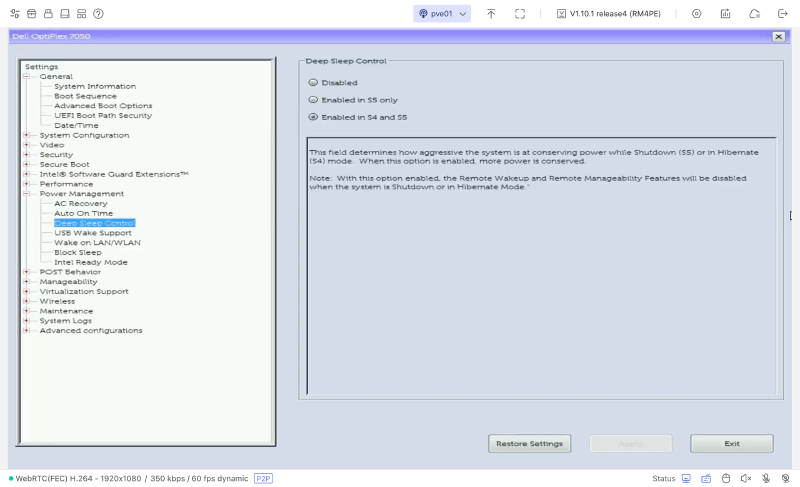
There’s the cause. To save a bit of power when shut down, the BIOS cuts the network card. Yet Wake-on-LAN relies precisely on a network card that stays awake, with the machine off, to listen out for the magic packet. The two settings cancel each other out: enabling one without disabling the other is pointless.
The fix is applied right away, still remotely: Deep Sleep Control to Disabled, then Apply, then Exit. pve01 reboots and responds to ping in under a minute.
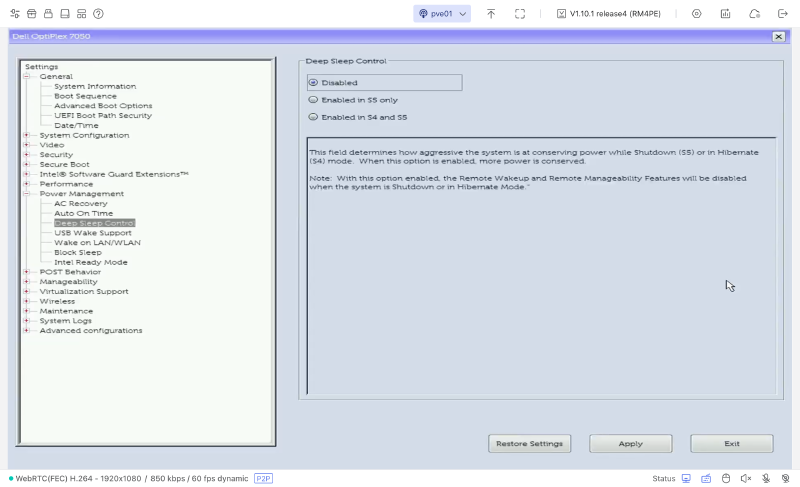
The trade-off: the network card stays powered when the machine is off, so its power draw while shut down is slightly higher.
Back to the test#
pve01 shut down cleanly a second time, “Wake” from the Toolbox, and this time it works: the video signal comes back in 8 seconds and pve01 responds to ping about 38 seconds after the click. No change was needed on the Linux side: the first suspect was innocent, it really was Deep Sleep Control cancelling out Wake-on-LAN.
This is exactly why you install a KVM. Diagnosing a BIOS setting, fixing it, then checking the result, all from my computer, without plugging a screen or keyboard into the machine. Without a KVM, this session would have started with digging out a screen and a keyboard and going to plug them into the back of a rack.
My verdict#
Strengths#
- A complete box: 10- and 19-inch brackets, four HDMI cables, four USB cables, an Ethernet cable. Nothing extra to buy to connect four machines.
- PoE: a single cable at the back, no extra power brick, and a USB-C as a backup. All for 5.16 W measured in UniFi, less than the 7.5 W of my Wi-Fi access point.
- Four machines permanently connected, with switching in a few seconds and ports you can rename.
- A painless firmware update: a few minutes, no input needed, configuration and password kept.
- A product that keeps evolving: V1.10.1 brought the dashboard and the Netbird app.
- Good numbers on the LAN: 60 fps, 0 % loss and smooth keyboard navigation in the BIOS.
- Built-in Wake-on-LAN, which worked as soon as the BIOS stopped cutting the network card.
- The security options are there: 2FA available, importing a custom TLS certificate possible.
Weak point#
- The price: €295.95 listed, that’s not a casual purchase for a homelab. But it needs to be weighed against what it replaces: four single-port KVMs, with as many boxes, cables, power supplies and as much rack space. And four-port KVMs over IP are still rare. For driving a cluster of three or four nodes, the maths adds up.
A small suggestion#
- The time zone defaults to Etc/UTC and has to be set by hand. Nothing serious, but offering to pick up the browser’s time zone on first login would be a nice touch.
Still open#
- Deep Sleep Control on pve02, pve03 and pbs01 (and declaring those three machines in Wake-on-LAN): to be handled during the next planned maintenance windows.
- The DHCP reservation on
.30and thekvm01.ktw.ovhrecord in Technitium. - A bit of cable management at the back of the rack: eight 1 m cables for four machines is plenty, but it gets messy fast.
- A LAN latency measurement on a graphical display, comparable to GL.iNet’s advertised figure.
- Remote access via Netbird, and with it a remote latency measurement (device latency plus network round-trip time).
- 2FA.
- Mounting an ISO from the eMMC, for example to reinstall a Proxmox node.
- The Cmd/Ctrl swap for macOS, to be tested from my computer.
What’s next?#
The KVM is in place and the homelab has its safety net. The next part stays on the hardware side, with the rack that houses it: the 3D-printed 10-inch rack you’ve glimpsed in the photos. After that, back to the software thread where part 13 left it, with identity and access. And the Comet X will meet Netbird there.
If the Comet X interests you, you’ll find it on the official GL.iNet store or on Amazon (links provided by GL.iNet).
See you soon!