
This is not a paid review or partnership — just a genuine desire to test a VPS provider that was recommended to me.
Context#
I use VPS quite regularly for various personal projects (like this blog), for testing, and so on. I wanted to try a provider that stands out from the usual suspects like OVHCloud, Hostinger, Infomaniak… HostMyServers is a hosting provider based in Lyon (my favourite city) and more specifically in Villeurbanne.
They have three products: dedicated servers, VPS and web hosting plans. The VPS pricing caught my eye — they’re among the cheapest for a French provider.
Here’s the pricing grid at the time of this review:
| Plan name | CPU | RAM | Storage | Network | Price |
|---|---|---|---|---|---|
| SSD-1 | 1 vCPU E5-2697A | 2 GB | 20 GB NVMe | 250 Mbps | €3.29/month |
| SSD-2 | 2 vCPU E5-2697A | 4 GB | 40 GB NVMe | 500 Mbps | €5.99/month |
| SSD-4 | 4 vCPU E5-2697A | 8 GB | 60 GB NVMe | 800 Mbps | €9.99/month |
| SSD-8 | 8 vCPU E5-2697A | 16 GB | 120 GB NVMe | 1 Gbps | €19.99/month |
| SSD-12 | 12 vCPU E5-2697A | 24 GB | 160 GB NVMe | 2 Gbps | €29.99/month |
| SSD-12' | 12 vCPU E5-2697A | 32 GB | 200 GB NVMe | 4 Gbps | €39.99/month |
Their prices are discounted based on the subscription length:
- 3 months: -5%
- 6 months: -7.5%
- 12 months: -10%
We’ll go with 3 months for the test, which comes to €9.38. As for payment methods, everything is accepted (even crypto). Once signed up, I place the order.
The client interface#
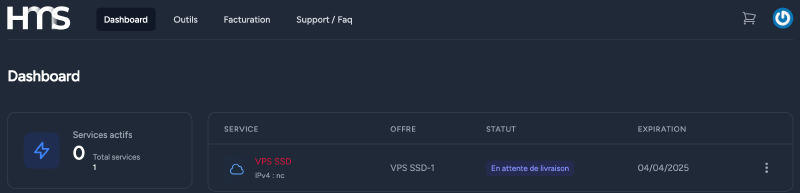
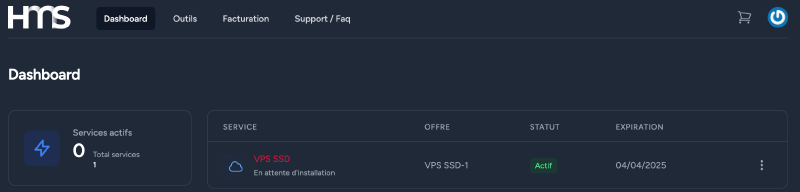
The server goes to Awaiting delivery on the panel. Then after a few seconds it switches to Active.
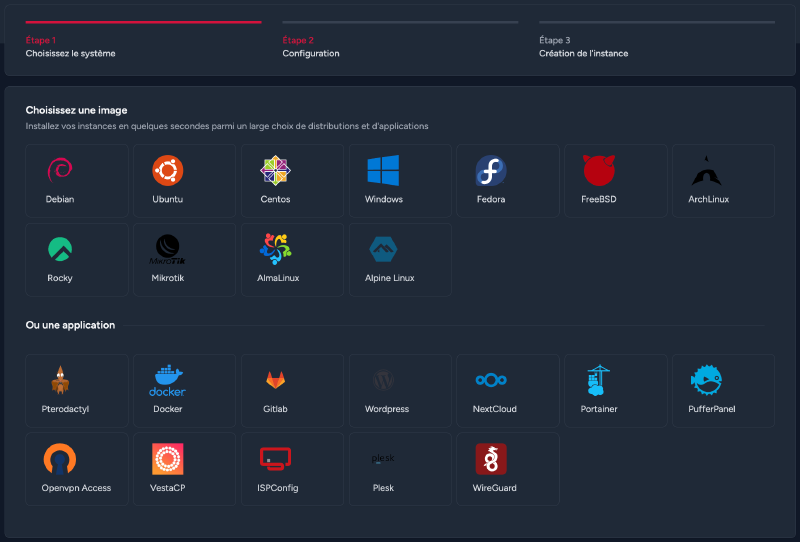
Clicking on the VPS reveals a nice wizard interface to first select the operating system — and there’s plenty of choice. There are even pre-installed applications if you need a WordPress, Wireguard or GitLab server in two clicks.
On our end, we’ll go with Ubuntu.
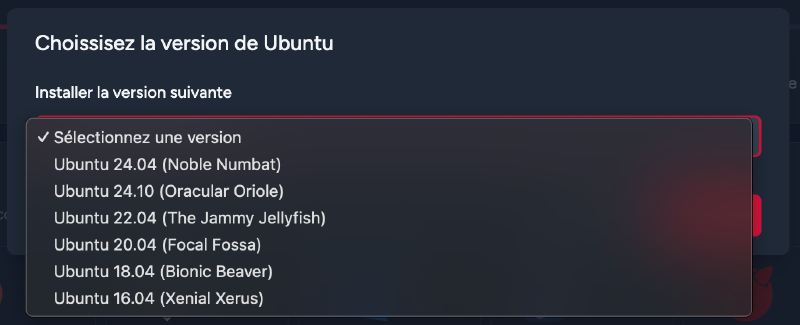
Next, we need to select the version: Ubuntu 24.04 (Noble Numbat) in our case.
Then comes the authentication method — password or SSH key. For a quick test and since I haven’t added an SSH key to my account, we’ll stick with a password. The installation kicks off. Going back to the dashboard, we can see our VPS with the Installation in progress status.

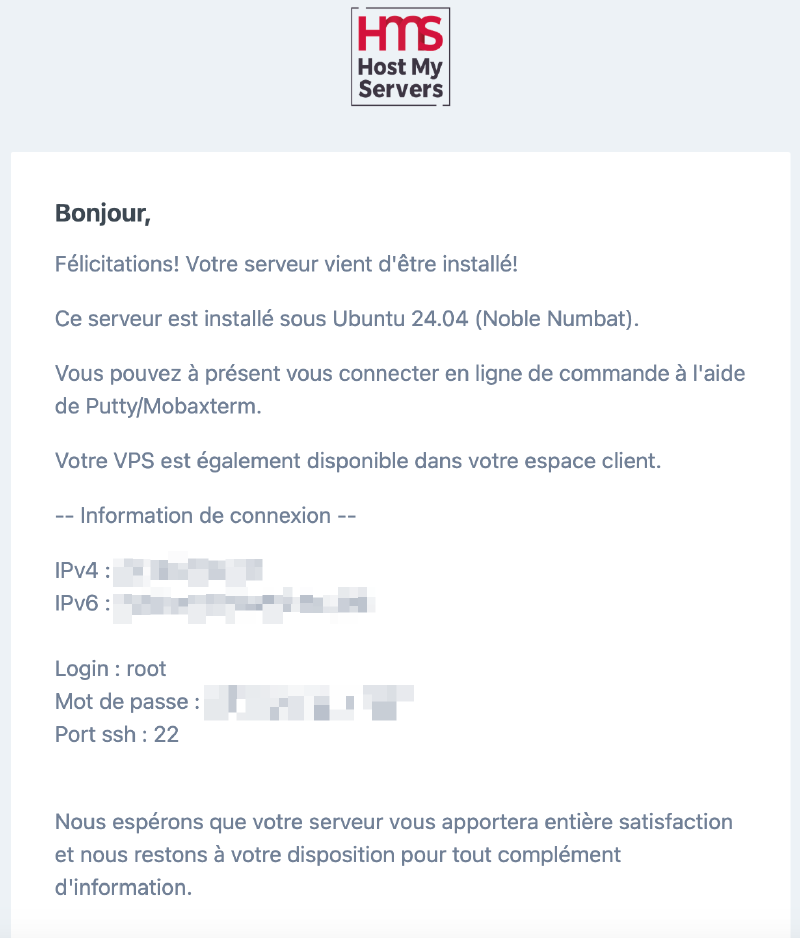
Barely 2 minutes later and just enough time to take a few screenshots, I receive an email confirming the server installation. The email contains our IPv4 (+ IPv6) along with the login and password. I would have preferred not to have the password in plain text in the email, but it’s a minor detail — I assume there’s none when using SSH key authentication, and in any case we’ll change it once connected to the server.
On the dashboard, clicking on the VPS gives you all the information.
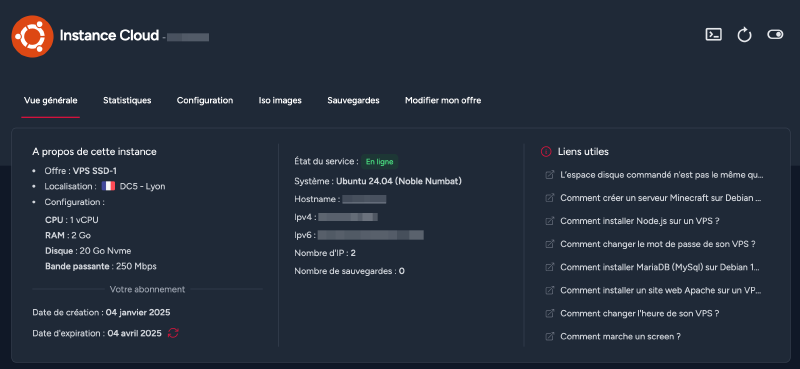
In the top right corner, we find three icons:
- A shell to connect to the server via the browser
- A server restart button
- And a last button with a power on/off icon. I figured it was probably to shut down, but wasn’t entirely sure. I clicked anyway and surprise — no confirmation popup, just a notification saying the server is stopping. That’s a bit brutal.
In my opinion, at the very least there should be tooltips on hover for these icons, and for critical actions (restart and shutdown) a confirmation popup would be welcome too.

Another click on this mysterious button and the instance restarts just as quickly — phew.
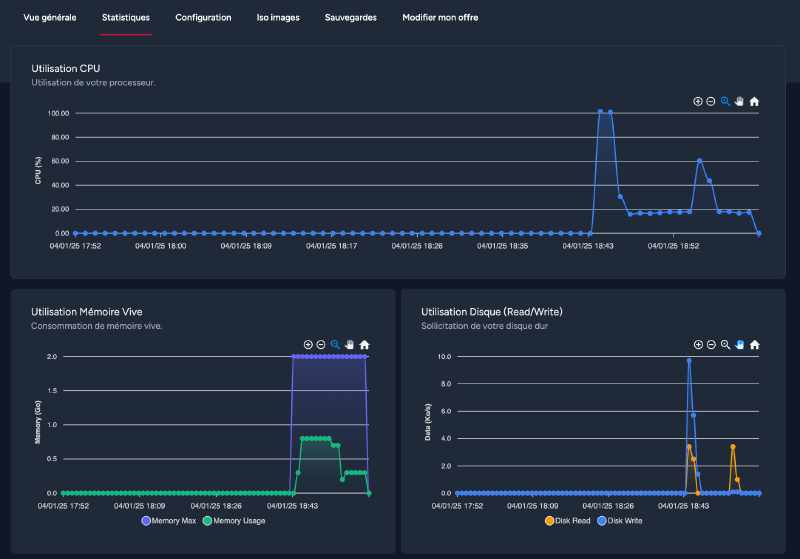
Moving on to the tabs, in the statistics section there’s no big surprise — we find the usual CPU, RAM, disk and network usage graphs. The graphs are simple but very clean and responsive, which is a nice change from some other providers.
In the configuration tab, we find the server’s IPv4 and IPv6 addresses and the option to add extra IPs. From what I can see, additional IPv4 addresses are charged as a one-time cost only with no recurring monthly fee (a positive point compared to many others including OVHCloud). It’s interesting to note that full blocks as well as individual IPs can be added.
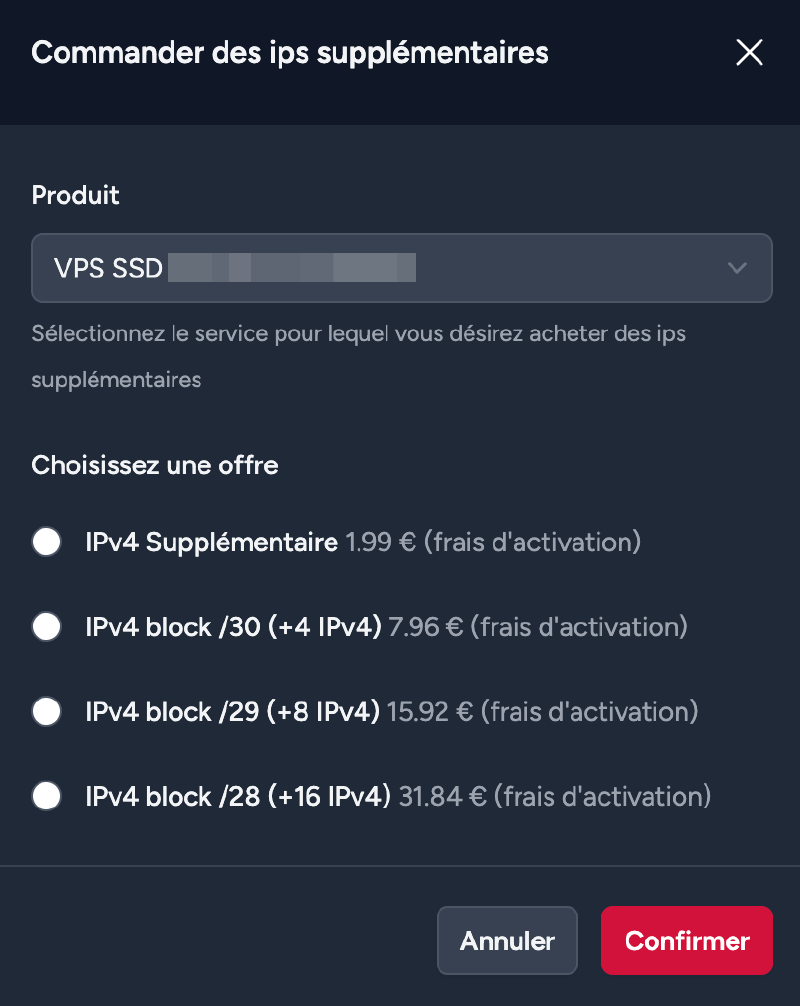
No need for extra IPs for now, but I’ll keep that in mind — it’s a great plus (and I think I’ll test that later). This configuration tab also has the button to reinstall the server.
On the next tab, ISO Images, you can — as the name suggests — mount ISO images on a virtual drive. There’s really a lot of choice, including:
- 3CX (VoIP)
- pfSense (Firewall)
- Proxmox Backup Server (Backup)
- OPNsense (Firewall)
- OpenMediaVault (NAS OS)
The following tab allows you to make backups (I assume server snapshots). I don’t see any restrictions or extra costs, so I’ll kick off a first backup — it’ll let us test a rollback later.
The backup completes in barely a few seconds and appears in the list:
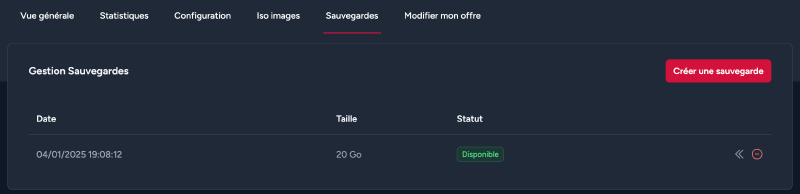
Oh no, the return of the tooltip-less buttons (I’ll send a link to this article to their support team for feedback). I assume the first one restores the backup (we’ll test that later) and the second one probably deletes it. Let’s test that right away… Oh, a nice confirmation popup:
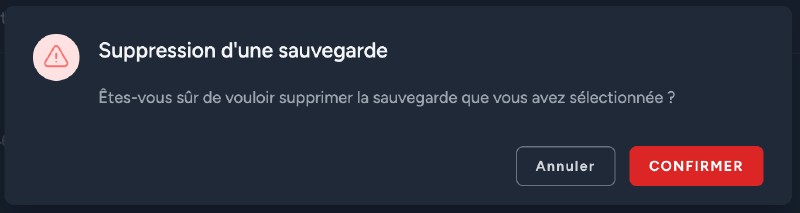
We’ll keep our backup alive then — it’ll come in handy later.
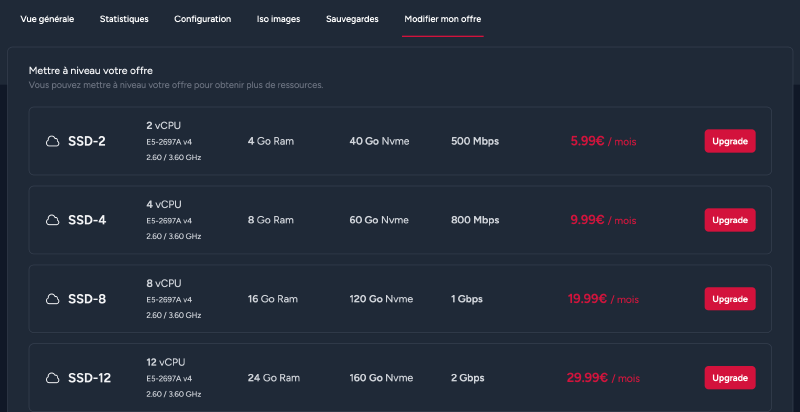
Next and last tab, you can modify the VPS plan to increase performance (and possibly downgrade if you don’t have the smallest VPS):
That’s it for this first part of the review — I promise I won’t take long to publish the follow-up with a performance benchmark, extra IP testing, snapshot testing and availability checks.
First impressions#
The HostMyServers interface is intuitive, the account creation and ordering process is very smooth. There’s no clutter on the portal and for me that’s a positive — you get straight to the point. The VPS pricing is really good for a quality that, at first glance, delivers.
The only downside I’d note is this lack of tooltips and confirmation popups for restart and shutdown actions (and spoiler: for snapshots too, which I’ve already tested).
See you soon!